You can set the Connection Notice feature to notify you when an Expert is connecting to your computer.
To set up this feature, click the Notification button in the Client Setup program.
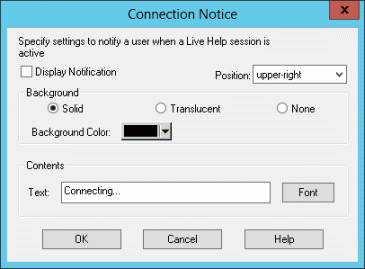
You can configure the notification to be displayed when an Expert is connecting, by specifying the following items:
Display Notification: Enable or disable the Connection Notice feature.
Position: Select the default position of the notification window to one of 8 edges of the screen.
Background: Select the color and display method for the background of the notification, such as solid, translucent, or none.
Contents: Type a text (up to 128 single-byte characters) to be displayed and select the font style and size for the text.
Note
In case the display color is 256 colors or lower, the background color will become solid even if you have chosen the "Translucent" option.
Although you can register up to 128 characters in the Text field in the Contents, some characters may not be displayed depending on the font size and screen size.
If the text displayed by the Connection Notice feature is in your way, click it to move to one of the eight positions at the edge of the screen. As you click continuously, the text moves around clockwise.