The Client application can be configured to run as a Windows(R) Service. Running the Live Help Client as a service allows a Support Specialist to administer unattended servers or workstations by remotely logging in and logging out with administrative privileges. For example, some configuration changes to a Windows(R) system require administrative privileges that may be unavailable to the logged in user.
The Client application can only survive the log off if running as a Service. Otherwise, the Client application stops running.
There are two ways to run the Client application as a service:
Run as a Service when the user starts the Client application. OR...
Automatically start the Client application as a Service when Windows starts.
This option is recommended for unattended servers or workstations, so they can be remotely monitored or administered.
To run the Client application as a Windows(R) service, follow the steps below.
Click the Advanced button in Client Setup. The Client Service Options screen displays, showing three options:
Run as a Service
Run as a Service, start Client at Windows boot
Do not run as a Service
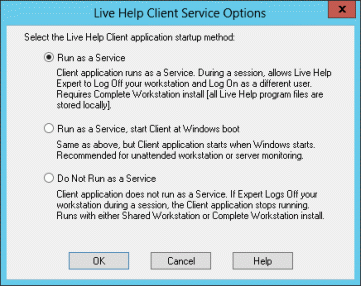
Select either of the two service options.
Click OK to save the setting.
Note
Important
When the Live Help Client program is running as a service, you cannot change the user name of it. If you click the Change Settings button on the Client startup dialog box, the Name field will be grayed out and become unavailable. In such case, follow the steps below to change the user name:
Click the Change Settings button to start Client Setup.
Change the running method of the Live Help Client to "Do Not Run as a Service," and exit Client Setup.
Again, click the Change Settings button to start Client Setup.
Change the user name.
Back the running method to one of "Run as a Service" options, and exit Client Setup.
The two Service options are grayed if the current user does not have appropriate rights that allow the Client application to run as a Service.
When you run the Live Help Client as a service, or run it on Windows Vista or later, Windows Server 2008 or later, the Windows(R) Security Alert dialog box will not appear. Therefore, there is a possibility that Windows Firewall is blocking your Live Help communications but you don't notice it. Refer to Appendix "Windows Firewall" in the "Live Help User's Guide" for required settings when you use Live Help applications on a system where Windows Firewall is enabled.
To select the "Authenticate using Windows groups" option in the "Security" field, choose one of the Service options.
If you log off from Windows(R) during a Live Help session, the session will be disconnected on some cases, depending on the operating system of your computer and the running method of the Live Help Client. Refer to the section "Notes on Logging Off and Switching User on Client Computer" in "Remote Control" in the "Live Help User's Guide" for further details.