The entry selected in the Client Setup dialog box is the connection method in use. The connection methods supported are:
Network using a Support Center
TCP/IP Direct
Modem
Only one connection method can be active at a time.
To change the communications options:
Select the radio button for the communications method that you wish to use to change the communications method.
Click the TCP/IP Setup button to choose the TCP/IP address to use for Live Help sessions or to restrict access to Live Help sessions by IP address or host name.
Note
The "Authenticate using Windows groups" check box in the "Security" field will be grayed out when Modem option is selected as the communication type.
Choose one of the network related choices to enable Local Area Network (LAN) and Wide Area Network (WAN) support. The network choices are:
If the Support Center option is selected, a drop-down list box will be available that will allow you to select which Support Center to use for the next session.
Note
To use this option, Live Help CM application is required. Refer to the "Live Help User's Guide" for information about configuring a Live Help CM application.
If you need to establish Live Help sessions over the Internet through firewalls, you need a computer on which Live Help Connect application is installed instead of Live Help CM application. Refer to the "Live Help Connect Administrator's Guide" for information about configuring a Live Help Connect computer.
The Support Specialist must type your TCP/IP address to make a connection to you. (Neither a Live Help CM application nor a Live Help Connect computer is required)
When you have selected the appropriate network choice, choose OK.
Live Help Client will take advantage of the Windows(R) dial-up networking (DUN) feature to hold TCP/IP sessions over a network. The use of DUN requires no changes to your Client configuration. If DUN is configured properly, and Windows(R) is set to use dial-up networking when a TCP/IP connection is required, Live Help Client will automatically activate it when creating a session.
Note
The dialup connection to an IPv6 network cannot be performed.
Clicking the TCP/IP Setup button in Client Setup displays the TCP/IP Setup dialog box.
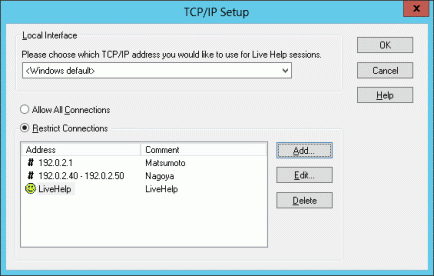
This allows you to configure two settings. These are:
If your system has multiple network cards with TCP/IP support installed (known as a multi-homed host), Live Help detects the cards and allows you to select the TCP/IP address to use for Live Help session communications. Choose a TCP/IP address you would like to use during Live Help sessions, or choose Windows Default if you would like the Windows(R) operating system to decide for you.
When an IPv6 address is displayed, the global unicast address is displayed if it has been assigned. A unique local unicast address is displayed if a global unicast address has not been assigned.
The following three types of settings are possible in an IPv4/IPv6 dual stack environment:
If waiting for only IPv4 connections, select the IPv4 address that waits for connections.
If waiting for only IPv6 connections, select the IPv6 address that waits for connections.
If waiting for both IPv4 and IPv6 connections, select the IPv4 and IPv6 address pair that waits for connections.
Note
If “Windows default” is selected, Live Help will wait for connection requests for all network adapters.
Note that the IP address displayed in the Live Help Client window that waits for connection will be one of the IP addresses set for the terminals on which Live Help Client is installed.
This security feature allows the Client to restrict access to sessions based on the IP address or host name of the computer running the Live Help Expert software. By default, the Client software is configured to allow all connections. To restrict access to your Live Help session, select the Restrict Connections radio button. You will then need to configure which IP addresses or host names can have access to your machine.
Note
The Restricted Connections List is valid only for TCP/IP Direct and Connection Manager sessions. Incoming connections through modems or a Live Help Connect Server will not be restricted by IP address or host name.
The Restricted Connections List contains IP addresses and host names of computers that are allowed to connect to your Client session. The list contains two columns. The first column can contain an IP address, a range of IP addresses or a host name. The second column contains an optional comment for each entry in the list. To help differentiate items in the list, a '#' icon is placed next to IP addresses or ranges of IP addresses. A  icon is placed next to host names in the list.
The list is sorted alphanumerically, first by IP address then by host name. The columns of the list box can be resized as necessary and scroll bars will display should the contents of an entry not fit in the list.
To modify entries in the Restricted Connections List, click the Add, Edit or Delete buttons on the TCP/IP Setup dialog box.
To add entries to the Restricted Connections List, click the Add button. The Add dialog box will display. This dialog box contains three radio buttons that allow you to select the type of entry to add to the list.
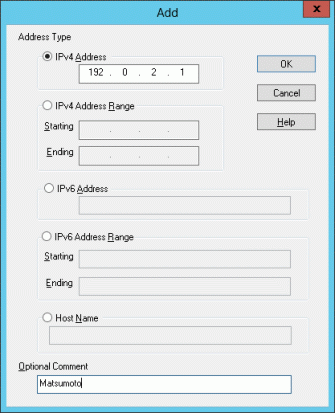
Selecting this radio button permits you to enter the IPv4 address of a single workstation that can join the Client session. The address is entered in the format ###.###.###.### and is validated for correctness when the OK button is pressed.
Selecting this radio button permits you to enter a range of IPv4 addresses that can join the Client session. This option is particularly useful when, for example, all the Expert machines are located on a single subnet of the network. The addresses are entered in the format ###.###.###.### and are validated for correctness when the OK button is pressed.
Selecting this radio button permits you to enter the IPv6 address of a single workstation that can join the Client session. The address is entered in the RFC5952 format and is validated for correctness when the OK button is pressed.
Selecting this radio button permits you to enter a range of IPv6 addresses that can join the Client session. This option is particularly useful when, for example, all the Expert machines are located on a single subnet of the network. The addresses are entered in the RFC5952 format and are validated for correctness when the OK button is pressed.
Selecting this radio button permits you to enter the host name of a computer that can join the Client session. This name must be any of the followings:
The host name written in the hosts file if there is the entry for the computer in the hosts file.
The host name of the computer registered on a DNS name server if there is no entry for the computer in the hosts file. (You can check the host name registered on a DNS name server by using NSLOOKUP command of Windows(R))
NetBIOS name (the name displayed as "Unique[00]" when you run NBTSTAT command) of the computer if the computer is not registered on either hosts file or a DNS name server.
Note
You must specify exactly the same name as the name written in the hosts file or displayed by NSLOOKUP/NBTSTAT command in the Restricted Connections List. A computer with a fully qualified host name (e.g. jsmith.fujitsu.com) cannot connect to your support session if you specify a simple host name (e.g. jsmith) in the Restricted Connections List.
When the IP address of Live Help Expert is changed in the NAT environment, the IP address to specify should specify the physical IP address of Live Help Expert.
Wildcards are also allowed. So, for example, if you wish to allow all workstations located on the Fujitsu domain to join the session, you could add *.fujitsu.com as the host name.
The Optional Comment text box can be used to enter a descriptive comment for that particular entry.
After you have supplied an IP address, range of addresses or host name, you can add the entry to your list by pressing the OK button. Pressing the Cancel button would cancel the dialog box without adding anything to your list.
To edit entries in the Restricted Connections List, select the entry and press the Edit button. You can also edit an entry by double clicking on it in the Address column. The Edit dialog box will display. This dialog box is identical to the Add dialog box with the exception that the IP address, range of addresses or host name fields are filled in with the information from the selected entry.
Make any desired changes to the entry and press the OK button to save the changes. Press the Cancel button to discard any changes that were made.
To delete entries in the Restricted Connections List, select the entry that you wish to remove and press the Delete button. A message box will display requesting confirmation of the delete action.
When you select the Modem choice, the Live Help Client application will use your modem to make the connection to the Support Specialist computer.
There are two choices available when using your modem for the support session connection: Wait for Call, and Dial Out.
Choose this option to wait for a data call from the Specialist. In this case, when you start the Client application your modem is placed in "auto answer" mode and the application waits for the incoming data call.
Choose Dial Out to call the Specialist and make a connection using your modem. Using Dial Out, the Client application asks you to enter the telephone number of the Specialist modem, and then dials the data call.
Additionally, there is a modem drop-down list available. If your machine is configured with more than one modem, this drop-down will allow you to choose which modem to use for sessions.
Note
The "Authenticate using Windows groups" check box in the "Security" field will be grayed out when Modem option is selected.