If necessary, set up the product on a Windows or a Linux machine.
Note
Before performing this procedure, ensure that the following operations have been completed.
If the operations have not been completed, setup of Systemwalker Software Configuration Manager will fail.
[Windows]
Perform the setup by opening a new command prompt and executing the following command:
<Systemwalker Software Configuration Manager installation directory>\SWCFMGM\bin\swcfmg_setup -s |
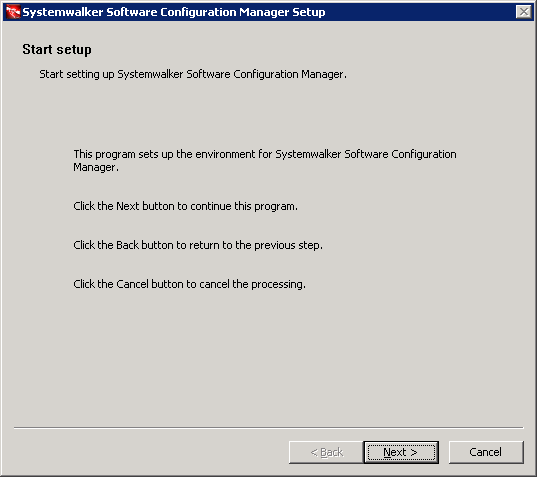
The setup start window will be displayed.
Click the Next button.
The User settings for the operating environment window will be displayed.
Specify the following items, and then click the Next button.
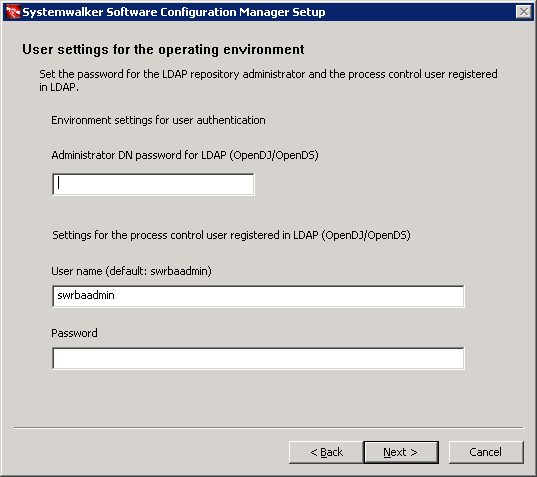
Input parameter | Input value (default) |
|---|---|
Manager DN password | Password of the LDAP (OpenDJ/OpenDS) repository administrator. If this parameter is not changed, the following default value is set: admin (*1) |
Name of the process control user | Name of the process control user registered in LDAP. If the sample LDIF is not changed, the following default value is set: swrbaadmin (*1) |
Password of the process control user | Password of the process control user registered in LDAP. If the sample LDIF is not changed, the following default value is set: systemwalker#1 (*1) |
*1: Specify the value set during Systemwalker Runbook Automation setup.
Point
The input window is not displayed if Systemwalker Software Configuration Manager is linked to ServerView Resource Orchestrator.
The Database settings window will be displayed.
Specify the following items, and then click the Next button.
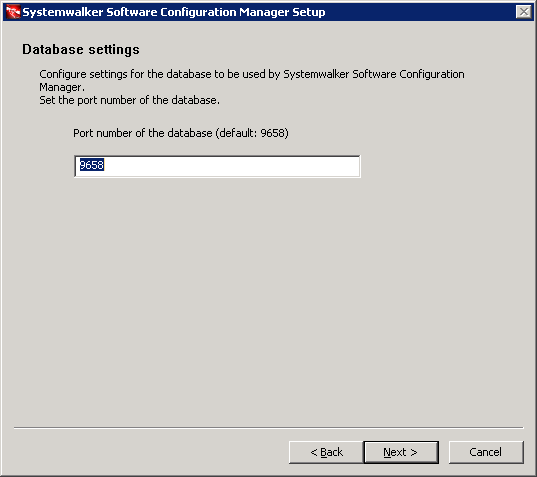
Perform the database settings that will be used by Systemwalker Software Configuration Manager:
Input parameter | Default value |
|---|---|
Database port number | 9658 |
The WSUS settings window will be displayed.
Specify the following items, and then click the Next button.
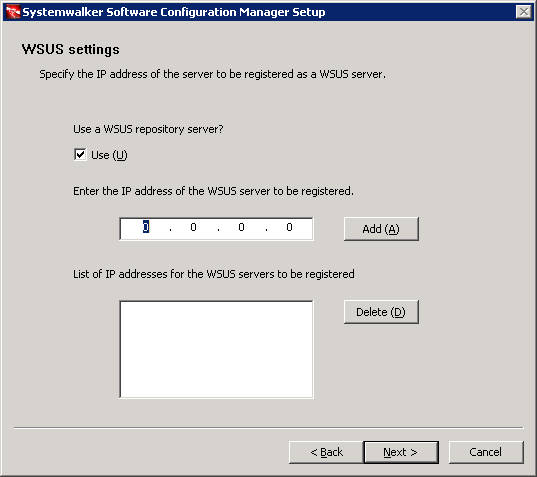
To use a WSUS server, perform the following operations:
Specify the IP address of the WSUS server, and then click the Add button. Add the IP addresses for all the servers to be registered as WSUS servers. Up to 10 WSUS servers can be linked to this product.
To remove an IP addresses that has been added, select the IP address in the list, and then click the Delete button.
If no WSUS servers are to be used, clear the Use checkbox.
The Media library settings window will be displayed.
Specify the following items, and then click the Next button.
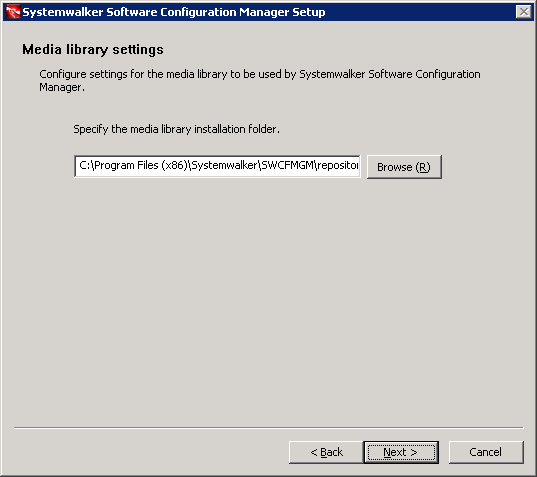
Perform the media library settings.:
Input item | Default value |
|---|---|
Media library installation folder | <Systemwalker Software Configuration Manager installation directory>\SWCFMGM\repository |
The Environment settings for the email transmission function window will be displayed.
Specify the following items, and then click the Next button.
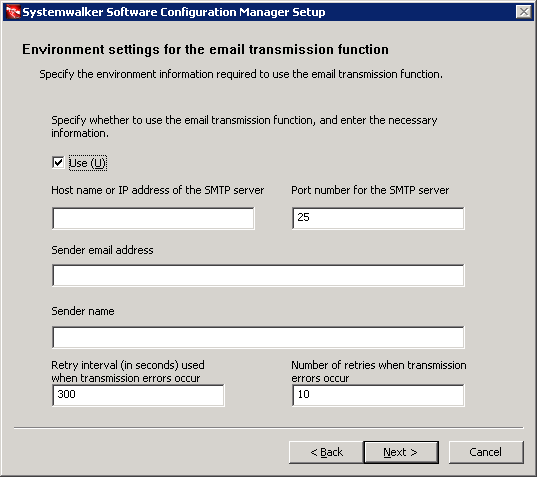
To use the email transmission function, set the following items:
Input item | Default value |
|---|---|
Host name or IP address of the SMTP server | None |
Port number for the SMTP server | 25 |
Sender email address | None |
Sender name | None |
Retry interval (in seconds) used when transmission errors occur | 300 |
Number of retries when transmission errors occur | 10 |
Point
Set the Retry interval (in seconds) used when transmission errors occur and Number of retries when transmission errors occur items to match the operation policy, such as the target time for recovering from problems.
If there is no clear operation policy, use the default values.
If the email transmission function is not to be used, clear the Use checkbox.
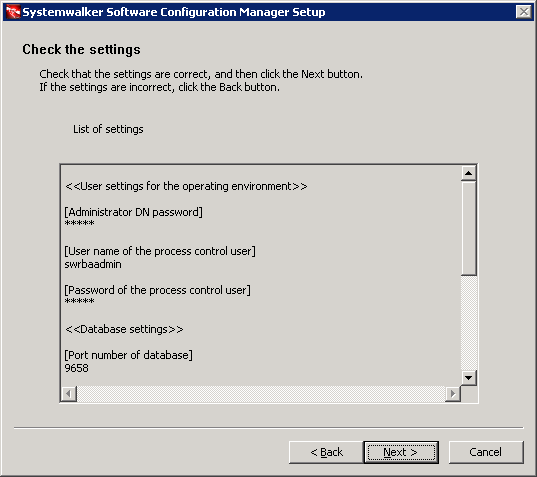
The Check the settings window will be displayed.
Check the settings, and then click the Next button to start the setup.
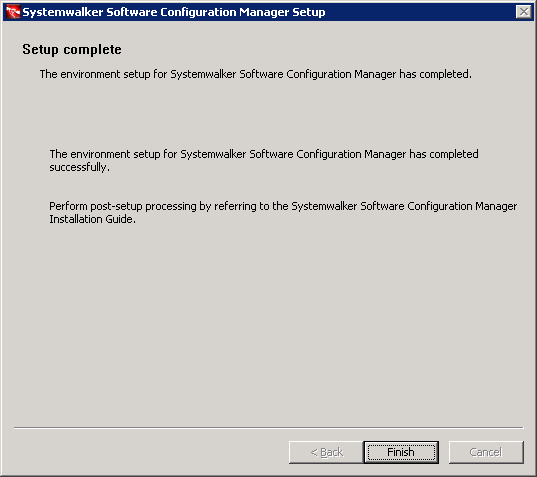
Upon successful completion, the following window will be displayed.
Click the Finish button.
[Linux]
Execute the following command to perform the setup:
/opt/FJSVcfmgm/bin/swcfmg_setup -s |
A welcome window will be displayed. Press the Enter key.
================================================================================
                Systemwalker Software Configuration Manager Setup
                                    V15.3.0
                      Copyright 2010-2014 FUJITSU LIMITED
================================================================================

Welcome to Systemwalker Setup!
Set up Systemwalker Software Configuration Manager.

Press ENTER.
The setup start window will be displayed. Enter "y".
================================================================================
                Systemwalker Software Configuration Manager Setup
                                    V15.3.0
                      Copyright 2010-2014 FUJITSU LIMITED
================================================================================

Systemwalker Software Configuration Manager (admin server)

Start the setup?
[y,n]
=>
The User settings for the operating environment window will be displayed.
Specify the password for the LDAP repository administrator.
Specify the value set during Systemwalker Runbook Automation setup. (The default value is "admin".)
<< User settings for the operating environment >>
Set the password for the LDAP repository administrator.
================================================================================

Enter the administrator DN password for LDAP (OpenDJ/OpenDS).
=>
Specify the name of the user for process control registered in LDAP.
Specify the value set during Systemwalker Runbook Automation setup. (The default value assumed when you do not change the sample LDIF is "swrbaadmin".)
<< User settings for the operating environment >>
Set the process control user registered in LDAP.
================================================================================

Enter the user name of a process control user already registered in LDAP (OpenDJ/OpenDS).
If the return key is pressed without any input, [default: swrbaadmin] will be set.
=>
Specify the password for the user for process control registered in LDAP.
Specify the value set during Systemwalker Runbook Automation setup. (The default value assumed when you do not change the sample LDIF is "systemwalker#1".)
<< User settings for the operating environment >>
Set the process control user registered in LDAP.
================================================================================

Enter the password of a process control user already registered in LDAP (OpenDJ/OpenDS).
=>
Point
The input window is not displayed if Systemwalker Software Configuration Manager is linked to ServerView Resource Orchestrator.
The Database settings window will be displayed.
Enter the port number of the database.
<< Database settings >>
Configure settings for the database to be used by Systemwalker Software Configuration Manager.
Set the port number of the database.
================================================================================

Enter the database port number.
If the return key is pressed without any input, [default: 9658] will be set.
=>
The WSUS settings window will be displayed. Specify whether to use WSUS server.
<< WSUS settings >>
Specify the environment information required to use the WSUS server.
=================================================================================

Use a WSUS repository server?

1. Use
2. Do not use
[number,q]
=>
To use a WSUS server, enter the IP address of the WSUS server.
<< WSUS settings >>
Specify the IP address of the server to be registered as a WSUS server.
=================================================================================

Enter the IP address of the WSUS server to be registered.
=>
Enter either the IP address of the WSUS if continuing registration, or "e", if completing registration of multiple WSUS servers.
<< WSUS settings >>
Specify the IP address of the server to be registered as a WSUS server.
=================================================================================

[List of IP addresses for the WSUS servers to be registered]
WSUS server 1:  192.168.10.10

Enter the IP address if continuing registration, or enter [e] if completing registration.
[IPAddress,e,q]
=>
The Media library settings window will be displayed.
Specify the directory where the media library is to be installed.
<< Media library settings >>
Configure settings for the media library to be used by Systemwalker Software Configuration Manager.
================================================================================

Specify the media library installation directory.
Installation directory (can be changed): /var/opt/FJSVcfmgm/repository

Accept the above settings?
[y,n,q]
=>
The Environment settings for the email transmission function window will be displayed. Specify whether to use the function.
<< Environment settings for the email transmission function >>
Specify the environment information required to use the email transmission function.
=================================================================================

Specify whether to use the email transmission function.

1. Use
2. Do not use
[number,q]
=>
To use the email transmission function, set up the email transmission function.
Enter the host name or IP address of the SMTP server.
<< Environment settings for the email transmission function >>
Specify the environment information required to use the email transmission function.
=================================================================================

[Settings Information]
Email transmission function:  Use
Host name of the SMTP server:
Port number for the SMTP server:  25
Sender email address:
Sender name:
Retry interval (in seconds) used when transmission errors occur:  300
Number of retries when transmission errors occur:  10

Enter the host name or IP address of the SMTP server.
=>
Enter the port number for the SMTP server.
<< Environment settings for the email transmission function >>
Specify the environment information required to use the email transmission function.
=================================================================================

[Settings Information]
Email transmission function:  Use
Host name of the SMTP server:  smtp-server.example.com
Port number for the SMTP server:  25
Sender email address:
Sender name:
Retry interval (in seconds) used when transmission errors occur:  300
Number of retries when transmission errors occur:  10

Enter the port number of the SMTP server.
If the return key is pressed without any input, [default:  25] will be set.
=>
Enter the email address of the sender.
<< Environment settings for the email transmission function >>
Specify the environment information required to use the email transmission function.
=================================================================================

[Settings Information]
Email transmission function:  Use
Host name of the SMTP server:  smtp-server.example.com
Port number for the SMTP server:  25
Sender email address:
Sender name:
Retry interval (in seconds) used when transmission errors occur:  300
Number of retries when transmission errors occur:  10

Enter the sender's email address.
=>
Enter the name of the sender.
<< Environment settings for the email transmission function >>
Specify the environment information required to use the email transmission function.
=================================================================================

[Settings Information]
Email transmission function:  Use
Host name of the SMTP server:  smtp-server.example.com
Port number for the SMTP server:  25
Sender email address:  smtp-server@example.com
Sender name:
Retry interval (in seconds) used when transmission errors occur:  300
Number of retries when transmission errors occur:  10

Enter the sender's name.
=>
Enter the retry interval to be used when transmission errors occur.
<< Environment settings for the email transmission function >>
Specify the environment information required to use the email transmission function.
=================================================================================

[Settings Information]
Email transmission function:  Use
Host name of the SMTP server:  smtp-server.example.com
Port number for the SMTP server:  25
Sender email address:  smtp-server@example.com
Sender name:  Smtp Server
Retry interval (in seconds) used when transmission errors occur:  300
Number of retries when transmission errors occur:  10

Enter the retry interval (in seconds) used when transmission errors occur.
If the return key is pressed without any input, [default:  300] will be set.
=>
Enter the number of retries to be performed when transmission errors occur.
<< Environment settings for the email transmission function >>
Specify the environment information required to use the email transmission function.
=================================================================================

[Settings Information]
Email transmission function:  Use
Host name of the SMTP server:  smtp-server.example.com
Port number for the SMTP server:  25
Sender email address:  smtp-server@example.com
Sender name:  Smtp Server
Retry interval (in seconds) used when transmission errors occur:  300
Number of retries when transmission errors occur:  10

Enter the number of retries when transmission errors occur.
If the return key is pressed without any input, [default:  10] will be set.
=>
Check the settings for the email transmission function, and then enter "y".
<< Environment settings for the email transmission function >>
Specify the environment information required to use the email transmission function.
=================================================================================

[Settings Information]
Email transmission function:  Use
Host name of the SMTP server:  smtp-server.example.com
Port number for the SMTP server:  25
Sender email address:  smtp-server@example.com
Sender name:  Smtp Server
Retry interval (in seconds) used when transmission errors occur:  300
Number of retries when transmission errors occur:  10

Accept the above settings?
[y,n,q]
=>
Point
Set the Retry interval (in seconds) used when transmission errors occur and Number of retries when transmission errors occur items to match the operation policy, such as the target time for recovering from problems. If there is no clear operation policy, use the default values.
The Check the settings window will be displayed.
Check the settings, and then enter "y" to start the setup.
<< Check the settings >>
Ensure the settings are correct, and then start setup.
================================================================================

[User setting of operational environment]
Password of DN for manager: *********
User's for process control name of user: swrbaadmin
User's for process control password: *********

[Data base settings]
Port number for the Data base: 9658

[WSUS settings]
WSUS servers: Use
List of IP addresses for the WSUS servers to be registered:
WSUS server 1: 192.168.10.10

[Media library settings]
Media library installation directory: /var/opt/FJSVcfmgm/repository

[Environment settings for the email transmission function]
Email transmission function: Use
Host name of the SMTP server: smtp-server.example.com
Port number for the SMTP server: 25
Sender email address: smtp-server@example.com
Sender name: Smtp Server
Retry interval (in seconds) used when transmission errors occur: 300
Number of retries when transmission errors occur: 10

Start the setup with the above settings?
[y,q]
=>
When the setup completes, the following message will be displayed:
The environment setup for Systemwalker Software Configuration Manager has completed successfully.
Perform post-setup processing by referring to the Systemwalker Software Configuration Manager Installation Guide.