This section explains the tasks required before setup for the admin server.
Stop ServerView Resource Orchestrator if linking to it to operate the admin server:
[Windows]
<ServerView Resource Orchestrator installation directory>\SVROR\Manager\bin\rcxmgrctl stop |
[Linux]
/opt/FJSVrcvmr/bin/rcxmgrctl stop |
Note
If installing Systemwalker Software Configuration Manager on the same admin server as another operation management product such as Systemwalker Runbook Automation Management Server, it is necessary to stop the functions for the other operation management product. Ensure that these functions are stopped before setting up Systemwalker Software Configuration Manager (refer to "Appendix B Installing Operation Management Products on Admin Server" for details).
Use SSL communication to access the management console of Systemwalker Software Configuration Manager from a browser.
Note
It is not necessary to perform steps 1. to 3 of the following the procedure, if Systemwalker Software Configuration Manager is linked to ServerView Resource Orchestrator, or if the SSL communication environment has already been built. Start the procedure from step 4.
Build the SSL communication environment using the following procedure:
Setting the Interstage Certificate Environment Access Permissions[Linux]
Creating the Interstage Certificate Environment and the Application to Obtain the Certificate that is used for SSL Communication
Registering Certificates used in SSL Communication
Settings for SSL Communication
See
Refer to "Setting and Use of the Interstage Certificate Environment" in the Interstage Application Server Security System Guide for information on how to build the SSL environment.
Create an owner group that has permissions to access the Interstage certificate environment.
An example of creating the owner group using the command is shown below:
Create the Interstage certificate environment owner group.
In the following example, the owner group is created as "iscertg".
# groupadd iscertg
Note
The owner group that was created at the time of the Interstage certificate environment build must be specified in the -g option of the Certificate Signing Request (CSR) creation command (scsmakeenv). Refer to "3.1.1.2.2 Creating the Interstage Certificate Environment and the Application to Obtain the Certificate that is used for SSL Communication" for information on the CSR creation command.
Register the executing user in the "iscertg" group.
In the following example, the executing user is created as "nobody".
# usermod -G iscertg nobody
Note
The executing user that is registered in the Interstage certificate environment owner group must have been set in the User directive of the Interstage HTTP Server environment configuration file (httpd.conf).
The CSR creation command (from now on, this is referred to as the "scsmakeenv command") is used to create the CSR that will create the Interstage certificate environment and apply for the certificate that is used for SSL communication.
The creation procedure and execution example are shown below:
Creation procedure
Set the JDK or JRE installation path in the JAVA_HOME environment variable.
This procedure is only required for Linux. Setting of the environment variable JAVA_HOME is unnecessary for Windows.
Execute the scsmakeenv command.
[Windows]
scsmakeenv -n <private key nickname> -f <output destination file name for the CSR>
[Linux]
scsmakeenv -n <private key nickname> -f <output destination file name for the CSR> -g <Group that has permissions to access the Interstage certificate environment>
Change the CSR output destination file name if necessary.
Note
The private key nickname specified in the scsmakeenv command will be required when the site certificate obtained from the CA is registered.
Information
Refer to " SSL Environment Setting Commands" in the Interstage Application Server Reference Manual (Command Edition) for information on the scsmakeenv command.
Enter a password to access the Interstage certificate environment.
The password will be required to access the Interstage certificate environment.
Enter an identifier.
When the "What is your first and last name?" (alphanumeric name) enquiry is made, specify the FQDN of the server used to apply for the certificate as the Web server host name.
As with above step, enter the following items:
Name of organizational unit
Name of organization
Name of City or Locality
Name of State or Province
Two-letter country code
Check the values that were entered.
To create the CSR using the values that were entered, enter yes. To change the values that were entered, enter no.
Send the CSR to the CA to request that a certificate be issued.
If the scsmakeenv command has terminated normally, the CSR will be output to the certificate output destination file name that was specified in the -f option of the scsmakeenv command. Send that file to the CA and request that a certificate be issued. Follow the request method used by the CA.
Execution example
The command execution examples shown below use the following values:
- Site certificate nickname: SERVERCERT
- Applicant output destination file name: C:\temp\ssocert.txt
- Group that has permissions to access the Interstage certificate environment: iscertg
- First and last name: ssoserver.example.com
- Name of organizational unit: FUJITSU TOKYO
- Name of organization: FUJITSU
- Name of City or Locality: Shinjuku
- Name of State or Province: Tokyo
- Two-letter country code for this unit:jp
In the example, the applicant output file name is "C:\temp\ssocert.txt". Change the applicant output file name if necessary.
At the password prompt, enter the password that will be used to access the Interstage certificate environment. (it will not be displayed).
C:\>scsmakeenv -n SERVERCERT -f C:\temp\ssocert.txt
New Password:
Retype:

Input X.500 distinguished names.
What is your first and last name?
  [Unknown]: ssoserver.example.com
What is the name of your organizational unit?
  [Unknown]: FUJITSU TOKYO
What is the name of your organization?
  [Unknown]: FUJITSU
What is the name of your City or Locality?
  [Unknown]: Shinjuku
What is the name of your State or Province?
  [Unknown]: Tokyo
What is the two-letter country code for this unit?
  [Un]: jp

Is <CN=ssoserver.example.com, OU=FUJITSU TOKYO, O=FUJITSU, L=Shinjuku, ST=Tokyo,C=jp> correct?
  [no]: yes
<SCS: INFO: scs0101: CSR was issued <C:\temp\ssocert.txt>
C:\>
The command execution examples shown below use the following values:
- Site certificate nickname: SERVERCERT
- Applicant output destination file name: /tmp/ssocert.txt
- Group that has permissions to access the Interstage certificate environment: iscertg
- First and last name: ssoserver.example.com
- Name of organizational unit: FUJITSU TOKYO
- Name of organization: FUJITSU
- Name of City or Locality: Shinjuku
- Name of State or Province: Tokyo
- Two-letter country code for this unit:jp
In the execution example, a new Interstage certificate environment is created for which "iscertg" access permissions are set, and the CSR is also created. If an Interstage certificate environment has already been created, then set access permissions to it if necessary.
The Bourne shell has been used in the execution example.
# JAVA_HOME=/opt/FJSVawjbk/jdk6;export JAVA_HOME
# scsmakeenv -n SERVERCERT -f /tmp/ssocert.txt -g iscertg
New Password:
Retype:

Input X.500 distinguished names.
What is your first and last name?
  [Unknown]: ssoserver.example.com
What is the name of your organizational unit?
  [Unknown]: FUJITSU TOKYO
What is the name of your organization?
  [Unknown]: FUJITSU
What is the name of your City or Locality?
  [Unknown]: Shinjuku
What is the name of your State or Province?
  [Unknown]: Tokyo
What is the two-letter country code for this unit?
  [Un]: jp

Is <CN=ssoserver.example.com, OU=FUJITSU TOKYO, O=FUJITSU, L=Shinjuku, ST=Tokyo,C=jp> correct?
  [no]: yes
UX:SCS: INFO: scs0101: CSR was issued </tmp/ssocert.txt>
UX:SCS: INFO: scs0180: The owners group of Interstage certificate environment was set.
#
Note
You will be prompted to input password for Interstage certificate environment if Interstage certificate environment is already configured. In this case, input the password that was set when you configured Interstage certificate environment.
Information
Test site certificates can be used in the test environment. Note that these test site certificates are only for test environments, and so should not be used for actual operations.
Refer to Appendix C Creating Test Site Certificates for information on creating test site certificates.
Obtain the site certificate that was issued by the CA, and the CA certificate of the issuer of that certificate, and register them using the certificate/CRL registration command (from now on, this is referred to as the "scsenter command").
Information
Depending on the CA, it might be necessary to register an intermediate CA certificate. Refer to "Registering Certificates and CRLs" in " Setting and Use of the Interstage Certificate Environment" in the Interstage Application Server Security System Guide for details.
This work is unnecessary if you created a test site certificate.
Creation procedure
Set the JDK or JRE installation path in the JAVA_HOME environment variable.
This is necessary procedure for Linux. For Windows, it is not necessary.
Register the CA certificate using the scsenter command.
scsenter -n <CA certificate nickname> -f <CA certificate>
See
Refer to "SSL Environment Setting Commands" in the Interstage Application Server Reference Manual (Command Edition) for information on the scsenter command.
Enter a password to access the Interstage certificate environment.
Enter the password that was specified in the scsmakeenv command to access the Interstage certificate environment.
Register the site certificate using the scsenter command.
scsenter -n <Site certificate nickname> -f <Site certificate> -o
To register the site certificate that was obtained from the CA, specify the nickname that was specified in the private key in the scsmakeenv command. Note that the -o option must be specified to register the site certificate.
Enter a password to access the Interstage certificate environment.
Enter the password that was specified in the scsmakeenv command to access the Interstage certificate environment.
Execution example
The command execution examples shown below use the following values:
- CA certificate: C:\temp\ca-cert.cer
- CA certificate nickname: CACERT
- Site certificate: C:\temp\server-cert.cer
- Site certificate nickname: SERVERCERT
In the examples, the CA and site certificates obtained are "C:\temp\ca-cert.cer" and "C:\temp\server-cert.cer". Change the file path name of each certificate if necessary.
At the password prompt, enter the password that will be used to access the Interstage certificate environment (it will not be displayed).
C:\>scsenter -n CACERT -f C:\temp\ca-cert.cer
Password:
Certificate was added to keystore
SCS: INFO: scs0104: Certificate was imported.
C:\>scsenter -n SERVERCERT -f C:\temp\server-cert.cer -o
Password:
Certificate reply was installed in keystore
SCS: INFO: scs0104: Certificate was imported.
C:\>
The command execution examples shown below use the following values:
- CA certificate: /tmp/ca-cert.cer
- CA certificate nickname: CACERT
- Site certificate: /tmp/server-cert.cer
- Site certificate nickname: SERVERCERT
Change the file names of the CA and site certificates that were obtained if necessary.
The Bourne shell has been used in the execution example.
# JAVA_HOME=/opt/FJSVawjbk/jdk6;export JAVA_HOME
# scsenter -n CACERT -f /tmp/ca-cert.cer
Password:
Certificate was added to keystore
UX:SCS: INFO: scs0104: Certificate was imported.
# scsenter -n SERVERCERT -f /tmp/server-cert.cer -o
Password:
Certificate reply was installed in keystore
UX:SCS: INFO: scs0104: Certificate was imported.
#
Using the Interstage Management Console, create the SSL definition.
Start the Interstage Management Console.
Follow the procedure below to start the Interstage Management Console:
Start the Web browser.
Specify the Interstage Management Console URL.
http://[host name of the Admin Server]:[port number for the Interstage Management Console]/IsAdmin/
The default port number is "12000".
Log in to the Interstage Management Console.
The user should log in as a user of the admin server with Administrators privileges.
Create the SSL definition.
Select the System >> Security >> SSL >> Create a new SSL Configuration tabs to show General Settings, then select the registered site certificate nickname, then create the SSL definition.
Specify the following items, then push Create button.
Settings item | Settings value |
|---|---|
Configuration name | Set the name that will identify the SSL definition. CFMG-SSL [Fixed] |
Site Certificate Nickname | Set the nickname that was specified when the site certificate was registered in the Interstage certificate environment, in "3.1.1.2.3 Registering Certificates used in SSL Communication". Otherwise, select the site certificate nickname that has been registered. The site certificate that was selected can be checked in the System >> Security >> Certificates >> Site Certificates window of the Interstage Management Console. |
Protocol Version | Select "SSL 3.0" and "TLS 1.0". |
Verify Client Certificate? | Select "No". |
Encryption Method | Refer to the Interstage Management Console Help, and change this if necessary. |
CA Certificate Nickname | Refer to the Interstage Management Console Help, and change this if necessary. |
If the registered site certificate has expired, you will no longer be able to log in to Systemwalker Software Configuration Manager. Follow the procedure to renew an expired site certificate:
Perform this procedure after ServerView Resource Orchestrator environment settings are completed, if operating Systemwalker Software Configuration Manager with ServerView Resource Orchestrator linked.
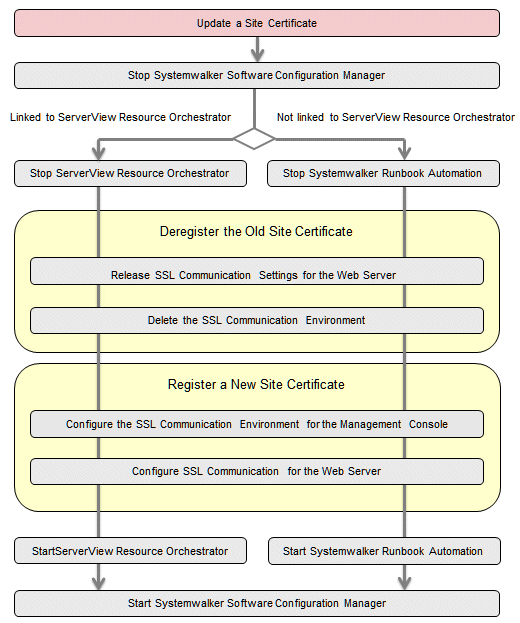
Stop Systemwalker Software Configuration Manager.
Execute the following command:
[Windows]
<Systemwalker Software Configuration Manger installation directory>\SWCFMGM\bin\swcfmg_stop |
[Linux]
/opt/FJSVcfmgm/bin/swcfmg_stop |
Stop either one of the following depending on the operation environment.
Stop Systemwalker Runbook Automation.
Execute the following command:
[Windows]
%SWRBA_HOME%\bin\swrba_stop |
[Linux]
/opt/FJSVswrbam/bin/swrba_stop |
Stop ServerView Resource Orchestrator [If Linking to ServerView Resource Orchestrator]
Use the following command to stop ServerView Resource Orchestrator.
[Windows]
<ServerView Resource Orchestrator installation directory>\SVROR\Manager\bin\rcxmgrctl stop |
[Linux]
/opt/FJSVrcvmr/bin/rcxmgrctl stop |
Deregister the old site certificate.
Release the SSL communication settings of the Web server.
Start the Interstage Management Console.
- Start the Web browser
- Specify the Interstage Management Console URL.
http://<Host name of the Admin Server>:<Port number for the Interstage Management Console>/IsAdmin/ |
Note that the default port number is "12000".
- Log in to the Interstage Management Console.
Users must log in as an admin server user with Administrator privileges.
Stop the Web server (CFMG-ext).
Click System >> Services >>Web Server >> CFMG-ext, and then open the status tab. If the Web server is not stopped, then click the Stop button.
Change the Web server (CFMG-ext) settings.
Select the Web server name (CFMG-ext), click the environment settings tab, click Detailed Settings >> Show, change the environment settings as shown below, and then click the Update button.
Settings item | Settings value |
|---|---|
Enable SSL Encryption | Do not use |
SSL definition | Select the SSL definition created at "Building the SSL Communication Environment for Management Console".
|
Remove the registration of the registered site certificate.
Refer to "4.2.4.1 Deleting the SSL Communication Environment for details.
Register the new site certificate.
Register the new site certificate.
Refer to "3.1.1.2 Building the SSL Communication Environment for Management Console" for details.
Configure the SSL communication settings of the Web server.
Start the Interstage Management Console.
- Start the Web browser.
- Specify the Interstage Management Console URL.
http://<Host name of the Admin Server>:<Port number for the Interstage Management Console>/IsAdmin/ |
Note that the default port number is "12000".
- Log in to the Interstage Management Console.
Users must log in as an admin server user with Administrator privileges.
Change the Web server (CFMG-ext) settings.
Open the environment settings tab from System >> Services >>Web Server >> CFMG-ext, click Detailed Settings >> Show, change the environment settings as shown below, and then click the Update button.
Settings item | Settings value |
|---|---|
Enable SSL Encryption | Use |
SSL definition | Select the SSL definition created at "Building the SSL Communication Environment for Management Console".
|
Start the Web server (CFMG-ext).
Click the Status tab, and then click the Start button to start the Web server.
Start either one of the following, depending on the operation environment.
Start Systemwalker Runbook Automation
Execute the following command to start Systemwalker Runbook Automation:
[Windows]
%SWRBA_HOME%\bin\swrba_start |
[Linux]
/opt/FJSVswrbam/bin/swrba_start |
Start ServerView Resource Orchestrator [If Linking to ServerView Resource Orchestrator]
Use the following command to start ServerView Resource Orchestrator.
[Windows]
<ServerView Resource Orchestrator installation directory>\SVROR\Manager\bin\rcxmgrctl start |
[Linux]
/opt/FJSVrcvmr/bin/rcxmgrctl start |
Start Systemwalker Software Configuration Manager.
Execute the following command to start Systemwalker Software Configuration Manager:
[Windows]
<Systemwalker Software Configuration Manger installation directory>\SWCFMGM\bin\swcfmg_start |
[Linux]
/opt/FJSVcfmgm/bin/swcfmg_start |
Create a certificate
Open the command prompt on the admin server.
Execute the following command to move to the installation folder.
[Windows]
>cd "%SWCFMGM_HOME%\SWCFMGX\Manager\sys\apache\conf" <RETURN> |
[Linux]
# cd /etc/opt/FJSVcfmgm/SWCFMGX/sys/apache/conf <RETURN> |
Back up the current certificate and then execute the certificate creation command (openssl.exe) which comes with this product.
Example
[Windows]
>cd "%SWCFMGM_HOME%\SWCFMGX\Manager\sys\apache\conf" <RETURN>
>copy ssl.crt\server.crt ssl.crt\server.crt.org <RETURN>
>copy ssl.key\server.key ssl.key\server.key.org <RETURN>
>..\bin\openssl.exe req -new -x509 -nodes -out ssl.crt\server.crt -keyout ssl.key\server.key -days 5479 -config openssl.cnf <RETURN>
Loading 'screen' into random state - done
Generating a 1024 bit RSA private key
.................++++++
................................++++++
writing new private key to 'ssl.key\server.key'
-----
You are about to be asked to enter information that will be incorporated
into your certificate request.
What you are about to enter is what is called a Distinguished Name or a DN.
There are quite a few fields but you can leave some blank
For some fields there will be a default value,
If you enter '.', the field will be left blank.
-----
Country Name (2 letter code) []: <RETURN>
State or Province Name (full name) []: <RETURN>
Locality Name (eg, city) [Kawasaki]: <RETURN>
Organization Name (eg, company) []: <RETURN>
Organizational Unit Name (eg, section) []: <RETURN>
Common Name (eg, YOUR name) [localhost]: <Host name of the Admin Server (FQDN)> (*1) <RETURN>
Email Address []: <RETURN>
[Linux]
# cd /etc/opt/FJSVcfmgm/SWCFMGX/sys/apache/conf <RETURN>
# cp ssl.crt/server.crt ssl.crt/server.crt.org <RETURN>
# cp ssl.key/server.key ssl.key/server.key.org <RETURN>
# /opt/FJSVcfmgm/SWCFMGX/sys/apache/bin/openssl req -new -x509 -nodes -out ssl.crt/server.crt -keyout ssl.key/server.key -days 5479 -config /opt/FJSVcfmgm/SWCFMGX/sys/apache/ssl/openssl.cnf <RETURN>
Generating a 1024 bit RSA private key
.................++++++
................................++++++
writing new private key to 'ssl.key/server.key'
-----
You are about to be asked to enter information that will be incorporated
into your certificate request.
What you are about to enter is what is called a Distinguished Name or a DN.
There are quite a few fields but you can leave some blank
For some fields there will be a default value,
If you enter '.', the field will be left blank.
-----
Country Name (2 letter code) []: <RETURN>
State or Province Name (full name) []: <RETURN>
Locality Name (eg, city) [Kawasaki]: <RETURN>
Organization Name (eg, company) []: <RETURN>
Organizational Unit Name (eg, section) []: <RETURN>
Common Name (eg, YOUR name) [localhost]: <Host name (FQDN)> (*1) <RETURN>
Email Address []: <RETURN>
*1: Enter the host name (FQDN)to be entered on the Web browser.
Example:
Host name: myhost.company.com