To run the Live Help Installer Customize Wizard, follow the steps below.
Insert the CD containing the Live Help Client software in the CD drive.
The Systemwalker Live Help installation program should automatically start showing the dialog box below. If not, run SWSETUP.EXE stored in the root of the CD.
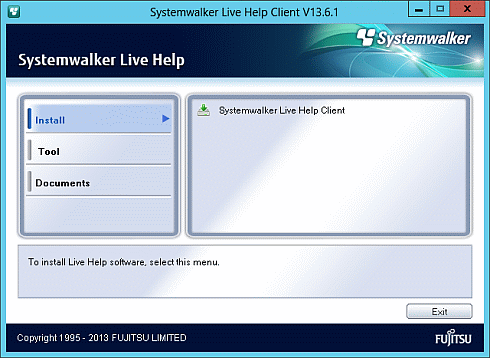
Click [Live Help Installer Customize Wizard] in the [Tool] menu.

The following Installer Customize Wizard dialog will appear.
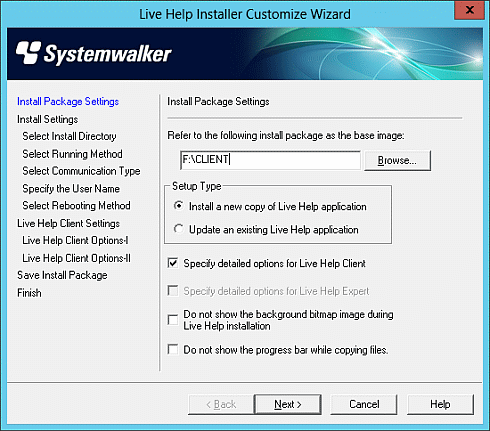
The Live Help Installer Customize Wizard has the following fields.
Left pane
Located at left of the window. Lists various settings available to configure using the Wizard.
Right pane
Located at right of the window. Allows you to configure the selected setting (shown in blue) from the list on the left pane.
Back
Displays the previous Wizard dialog.
Next
Displays the next Wizard dialog.
Cancel
Quits the Installer Customize Wizard without saving the settings.
Help
Displays help for the Wizard dialogs.
Choose a package to customize in the first dialog of the Installer Customize Wizard, Install Package Settings.
You may also specify the installation type, advanced options for Live Help Client, and installation view options.
Refer to the following install package as the base image
Specify the directory that stores the installation package to customize.
The term "installation package" refers to the following folders.
The following folder in the product CD of Live Help V12.0 or later:
CD drive:\Client
A copy of any of the above folders.
A customized folder of any of the above folders.
Setup Type:
Install a new copy of Live Help application:
Select this option when you install the Live Help application for the first time.
If you use the customized install package selecting this option to upgrade an existing Live Help application, the following settings will be overwritten with the values specified in the customized install package:
Running Method
Communication Type
User Name
The install directory and other settings will not be changed.
Update an existing Live Help application:
Select this option when you want to upgrade the previous version of Live Help application installed on your computer. The settings to be migrated differ depends on the version of the Live Help application installed on the computer. For details, refer to the section "Precautions on Version Upgrade" in "Precautions".
If you use the customized install package selecting this option on the computer on which the Live Help application is not installed, an error message will appear and the installation will be aborted.
When you install the Live Help application using the customized install package with this option selected, the computer will not be restarted automatically at the end of installation.
If you select this option, following detailed setting screens in the Live Help Installer Customize Wizard program, such as the Install Settings and the Live Help Client Settings screens, are not displayed.
Specify detailed options for Live Help Client
Check this checkbox to specify advanced options of for the Live Help Client application. For details on available options, refer to the section "Live Help Client Settings."
You must select "Install a new copy of Live Help application" for the Setup Type first to enable this checkbox.
Specify detailed options for Live Help Expert
Check this checkbox to specify advanced options of for the Live Help Expert application. This option will be grayed out and become unavailable when you specify a Live Help Client package in the [Refer to the following install package as the base image] field.
Do not show the background bitmap image during Live Help installation
Check this checkbox to hide the background screen of Live Help Installer during installation.
Do not show the progress bar while copying files
Check this checkbox to hide the copy progress during the installation.
After specifying settings, click the Next button. The Installer Customize Wizard will verify the settings and displays the next Wizard dialog.
If the install package is invalid, In that case, re-specify an appropriate install package.
After choosing a package to customize, specify each setting that you would like to customize.
The subsequent sections describe details on available settings on Wizard dialogs.
For details on each setting, refer to "Changing your Configuration".
Select Install Directory allows you to specify the directory to install the Live Help application.
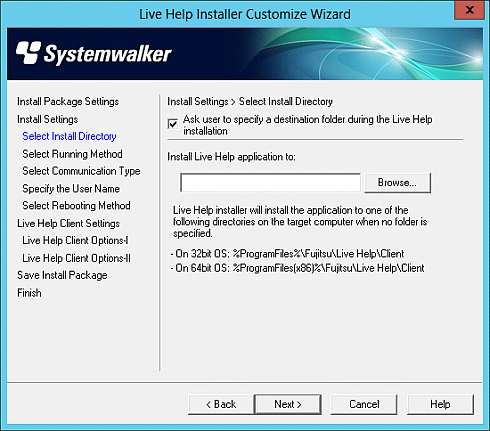
Ask user to specify a destination folder during the Live Help installation
Check this checkbox to ask the user to specify the install directory of the Live Help application during the installation. If this option is unchecked, the Installer will install the Live Help application to the directory specified in the [Install Live Help application to:] field.
Install Live Help application to:
Specify the directory to install the Live Help application. If you specify a network drive or a drive that does not exist on the target computer, the installation will fail. Decide the drive carefully and make sure that the drive you specified is appropriate for the computer on which the Live Help application will actually be installed.
If this field left empty, Live Help Installer will install the application to one of the following directories on the target computer.
On 32bit OS:
%ProgramFiles%\Fujitsu\Live Help\Client
On 64bit OS:
%ProgramFiles(x86)%\Fujitsu\Live Help\Client
Note
A directory name cannot contain any of the following characters:
Slash ( / )
More than one Colons ( : )
Asterisk ( * )
Question Mark ( ? )
Double quotation ( " )
Less-Than Sign ( < )
Grater-Than Sign ( > )
Vertical Line ( | )
Select Running Method allows you to specify the running method for Live Help Client. This setting is available only when customizing the Live Help Client installation package.
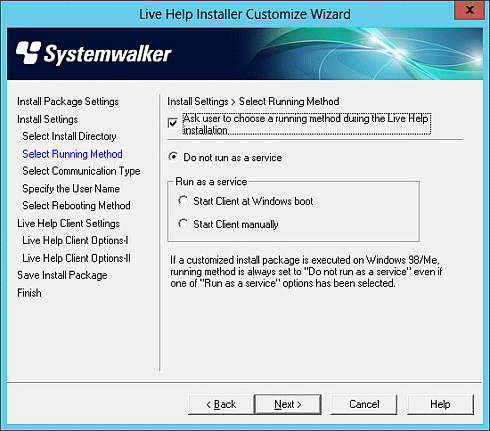
Ask user to choose a running method during the Live Help installation
Check this checkbox to ask the user to select the running method of the Live Help Client application during the installation. If this option is unchecked, the Installer will install the Live Help Client application applying the running method specified in the customized install package.
Do not run as a service
Select this option to run the Live Help Client as an application.
Run as a service
Select this option to run the Live Help Client as a Windows(R) service. The following two choices are available:
Start Client at Windows boot:
Select this option to run Live Help Client as a service and start it when the Windows(R) system starts.
Start Client manually:
Select this option to run Live Help Client as a service, but start it manually.
Select Communication Type allows you to specify the communication type for Live Help Client and Live Help Expert.
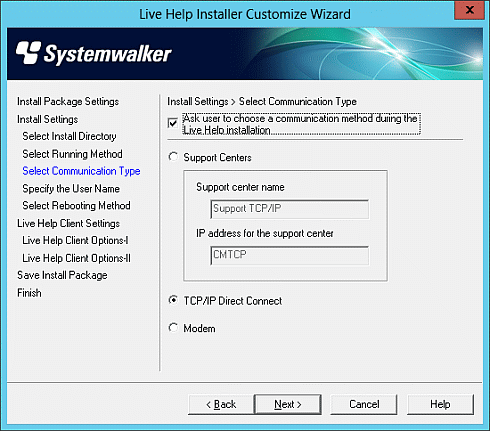
Ask user to choose a communication method during the Live Help installation
Check this checkbox to ask the user to select the communication method during the installation. If this option is unchecked, the Installer will install the Live Help application applying the communication method specified in the customized install package.
Support Centers
Select this option to use a Support Center for communication.
For Live Help Client, the Installer Customize Wizard provides fields for specifying the name and the IP address of a Support Center.
Support center name:
Specify the Support Center name in up to 40 characters.
IP address for the support center:
Specify the IP address of the Support Center in up to 49 characters.
Note
The Support Center name cannot contain a comma ( , ).
The IP address cannot contain a comma ( , ) and a space.
TCP/IP Direct Connect
Select this option to connect to a specific computer by using TCP/IP direct connection.
Modem
Select this option to use a modem for communication. After installation, you must choose a modem installed on the target computer.
Note
You cannot use a Modem for communication when you run the Live Help Client program as a service.
Specify the User Name allows you to specify the user name to use for Live Help connections.
Note
Every Live Help connection must have a unique user name. Make sure that the specified user name is unique among Live Help users.
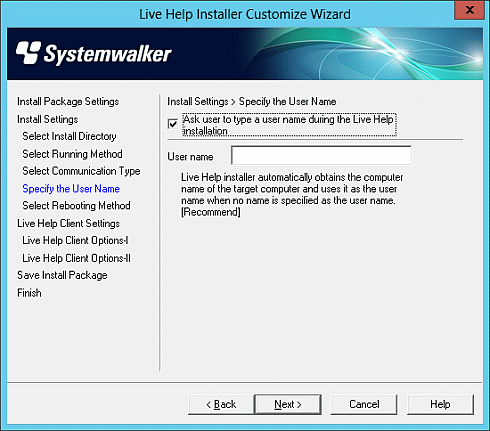
Ask user to type a user name during the Live Help installation
Check this checkbox to ask the user to specify the user name during the installation. If this option is unchecked, the Installer will install the application applying the user name specified in the customized install package.
User name
Specify the user name in up to 16 characters.
If unspecified, the Installer will use the name of the target computer as the user name.
Note
A user name cannot contain double quotation ( " ).
If the specified user name begins with or ends with a space, Live Help Installer Customize Wizard will delete the space character automatically.
Select Rebooting Method allows you to specify the Installer action after completing the installation.
Note
After installing Live Help Client, you must restart the computer to run it.
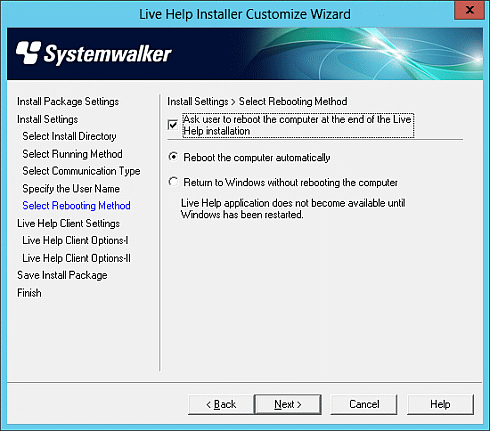
Ask user to reboot the computer at the end of the Live Help installation
Check this checkbox to prompt the user to restart the computer at the end of the installation process. If this option is unchecked, the Installer will end the installation with the action specified in the customized install package.
Reboot the computer automatically
Select this option to automatically restart the computer at the end of the installation.
Return to Windows without rebooting the computer
Select this option to return to Windows(R) without restarting the computer.
Note
The computer will be restarted automatically at the end of the installation, if you uncheck the checkbox "Ask user to reboot the computer at the end of the Live Help installation" and select the radio button "Reboot the computer automatically."
Live Help Client Options - I and II allow you to change the configuration of Live Help Client.
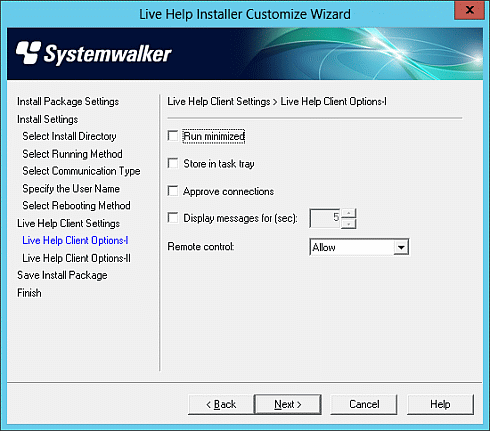
Run minimized
Check this checkbox to run the Live Help Client program minimized and displayed in the taskbar.
Store in task tray
Check this checkbox to display the Live Help Client icon not in the taskbar, but in the task tray.
Approve connections
Check this checkbox to display a dialog box notifying Client when someone tries to connect to Client computer using the Live Help Expert program.
Display messages for (sec)
Check this checkbox to specify the duration of time to display messages (connection approval and remote control, etc.) when the Live Help Client program is running as a service. The default value is 5 seconds, and the maximum value is 120 seconds. You can make the message box not to disappear automatically by specifying the value "0."
Remote control
Select an action from the dropdown list to control remote operations initiated by the Expert.
Allow: Choose this option to always allow the Support Specialist to take remote control.
Prohibit: Choose this option to prohibit the Support Specialist from taking remote control.
Ask user: Choose this option to displays a dialog box that allows Client to accept or deny the request when the Support Specialist attempts to take remote control.
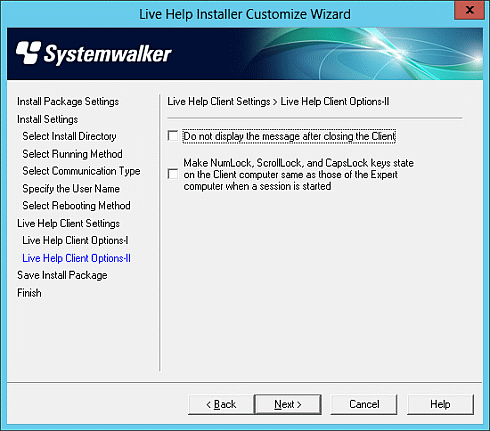
Do not display the message after closing the Client
If the Live Help Client program is configured to manually run as a service or not run as a service, it will exit when the Support Specialist selects the "Close Client" menu or button on the Live Help Expert program. In this case, the Live Help Client program will display the following message before it exits:
"This support session has ended. Thank you for using Fujitsu's products."
Check this checkbox to hide this message.
Make NumLock, ScrollLock, and CapsLock keys state on the Client computer same as those of the Expert computer when a session is started
Select this checkbox to synchronize the state of NumLock, ScrollLock and CapsLock keys on Live Help Client computer with those of Live Help Expert computer when a Live Help session is started.
Note
By default, Live Help Client does not synchronize the state of NumLock, ScrollLock and CapsLock keys on Live Help Client computer with those of Live Help Expert computer.
Save the customized install package in the Save Install Package dialog.
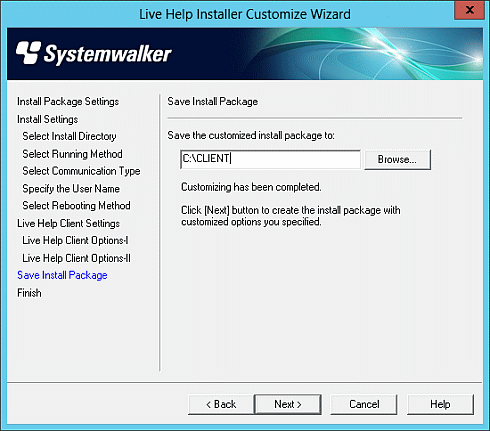
Save the customized install package to:
Specify the directory to store the install package. The directory must have enough space to store all files necessary to install the product as well as the file that contains the customization information.
After specifying a folder, click the Next button to save the customized install package.
The customization information is stored in the file "custom.txt" in the specified folder.