On the primary node, cancel each settings in the following procedures.
Note
Perform the procedures using Administrator privileges.
With Failover Cluster Manager, move transactions to which ETERNUS SF Manager belongs to the primary node.
Use the Failover Cluster Manager to confirm the transactions to which ETERNUS SF Manager belongs is offline.
However, the shared disk that was used by ETERNUS SF Manager must be online.
Copy the AdvancedCopy Manager environment setting file.
Copy the following copy source file to copy destination.
The envDir is "Environment Directory" specified at the ETERNUS SF Manager installation.
Copy Source File | Copy Destination File |
|---|---|
envDir\ACM\etc\swstg.ini | envDir\ACM\etc\swstg.ini.cluster.bk |
Restore AdvancedCopy Manager CCM environment setting files that was backed up in "Chapter 5 Customization for Management Server Transaction".
Overwrite the following files to the copy destination.
The programDir is "Program Directory" specified at the AdvancedCopy Manager CCM installation.
Copy Source File | Copy Destination File |
|---|---|
programDir\CCM\noncluster\micc\sys\.install.sys | programDir\CCM\micc\sys\.install.sys |
programDir\CCM\noncluster\bin\.stxc_install.sys | programDir\CCM\bin\.stxc_install.sys |
programDir\CCM\noncluster\sys\sys.properties | programDir\CCM\sys\sys.properties |
Edit the envDir\ACM\etc\swstg.ini.cluster.bk file.
Change the value of type in Common tag to "1".
On the primary node, execute the cluster unsetup command.
On the primary node, execute the following command:
programDir\ACM\bin\stgclunset_mscs
The cluster unsetup command window is displayed.
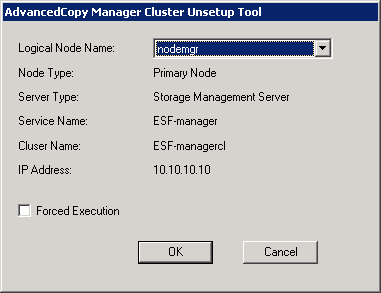
Select the logical node name selected of the Management Server transaction in the cluster unsetup window. For unsetup after node failure by the hardware error etc., check the Forced Execution checkbox.
After confirming each field, click OK.
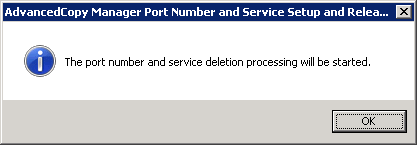
The following page is displayed. Click OK.
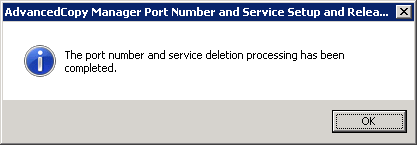
The following page is displayed. Click OK.
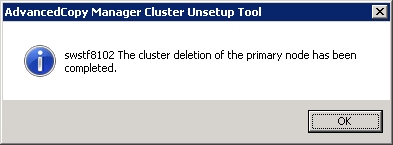
Complete cluster unsetup of the primary node.
When the completion window of cluster unsetup is displayed, click OK.
Delete the port number of AdvancedCopy Manager that was set for transaction use.
Delete the port number set for the Management Server transaction from the %SystemRoot%\system32\drivers\etc\services file. The service name is as follows:
stgxfws_logicalNodeName
Delete AdvancedCopy Manager CCM environment setting files that was backed up.
Delete the programDir\CCM\noncluster directory and contents.