Follow the procedure below to set up a Managed Server transaction.
Note
Perform the procedures using Administrator privileges. The Windows "Computer Browser service" must be activated if a user belonging to the Administrators of the domain wants to perform customization. If the other products are not using "Computer Browser Service", after this operation is completed, "Computer Browser Service" can be stopped without causing any problems.
Install the Failover Cluster Command Interface before performing the cluster setup.
Do not use the Telnet Server service.
Restart the primary node.
Offline the existing cluster transaction as required.
To add a Managed Server transaction to an existing cluster transaction, switch the cluster transaction offline using the Failover Cluster Manager. This step is not required if you create a new cluster transaction.
Leave the shared disk for shared data of AdvancedCopy Manager online.
Refer to your cluster software manuals for information on how to stop the cluster transaction and how to vary the shared disk online.
Move to the primary node.
With Failover Cluster Manager, move the Quorum disk, the shared disk that is used by AdvancedCopy Manager, and transactions to the primary node.
Refer to your cluster software manuals for information on how to move them.
Instruct the start of the cluster setup.
On the primary node, execute the following cluster setup command:
The programDir is "Program Directory" specified at the AdvancedCopy Manager's agent installation.
When executing in the Management Server
programDir\ACM\bin\stgclset_mscs |
When executing in the Managed Server
programDir\bin\stgclset_mscs |
Select the node type and shared disk.
The initial window of the cluster setup command is displayed.
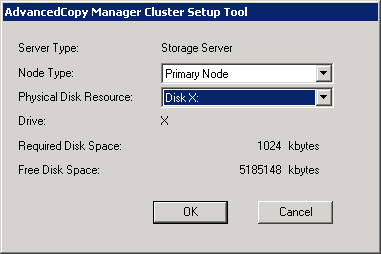
Each item is explained below. Make the required entries and then click OK.
Item | Explanation |
|---|---|
Server Type | Confirm that the server is a "Storage Server". |
Node Type | Select "Primary Node". |
Physical Disk Resource | Select the "Disk resource of shared disk for shared data" that was prepared in "7.3 Confirmation of Customization Items". |
Drive | The drive letter corresponding to the physical disk resource is displayed. |
Required Disk Space | The minimum disk size required for the AdvancedCopy Manager cluster environment is displayed. Use the calculated shared disk size for the required disk size. Make sure that there is enough free space. |
Free Disk Space | The amount of free disk space of the specified drive is displayed. |
Set the cluster information for the primary node.
The setting screen of the cluster setup command is displayed. A displayed screen may vary from operating system to operating system.
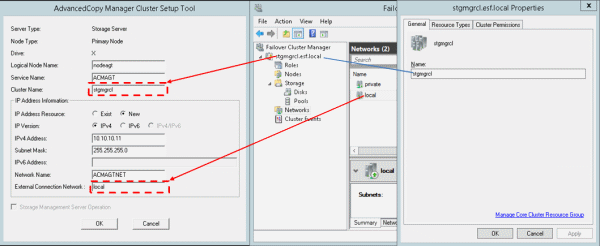
Each item is explained below. Make the required entries and then click OK.
Item | Explanation |
|---|---|
Server Type | Confirm that the server is a "Storage Server". |
Node Type | Confirm that the node is "Primary Node". |
Drive | The drive letter corresponding to the physical disk resource is displayed. |
Logical Node Name | Enter the "Logical node name" as defined in "7.3 Confirmation of Customization Items". |
Service Name | Enter the "Transaction name" as confirmed in "7.3 Confirmation of Customization Items". |
Cluster Name | Enter the "Cluster name" as confirmed in "7.3 Confirmation of Customization Items". |
IP Address Resource |
|
IP Version | Select the IP version of Managed Server IP address. |
IPv4 Address | Enter the "Logical IP address" (IPv4) as defined in "7.3 Confirmation of Customization Items" when using IPv4 to operate the Managed Server. |
Subnet Mask | Enter the subnet mask of the IP address in the IPv4 Address, when "New" is selected in the IP Address Resource and "IPv4" is selected in the IP Version. |
IPv6 Address | Enter the "Logical IP address" (IPv6) as defined in "7.3 Confirmation of Customization Items" when using IPv4 to operate the Managed Server. The specified IPv6 address should one that is usable with Windows Server Failover Clustering. |
Network Name | Enter the "Network name" as confirmed in "7.3 Confirmation of Customization Items" when "New" is selected in the IP Address Resource. |
External Connection Network | Enter the "Network for external connections" as confirmed in "7.3 Confirmation of Customization Items", when "New" is selected in the IP Address Resource and "IPv4" is selected in the IP Version. |
Storage Management Server Operation | Do not select this item for setting the Managed Server transaction. |
Set the port number and service.
The following page is displayed. If the port number and service has already been set, this page is not displayed.
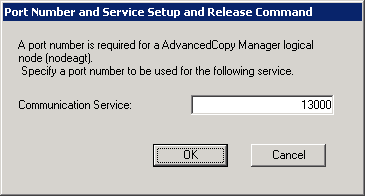
The item is explained below. Make the required entries and then click OK.
Item | Explanation |
|---|---|
Communication Service | Enter the "Communication service/daemon port number for transaction" as defined in "7.3 Confirmation of Customization Items". |
The port number and service settings have been completed.
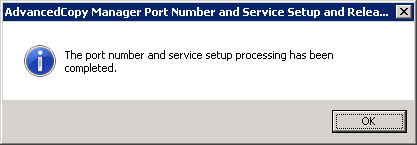
Click OK.
The cluster setup of the primary node has been completed.
When the cluster setup completion window is displayed, click OK. Continue by setting up the secondary node.
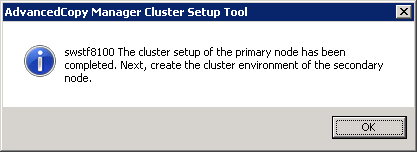
Restart the secondary node A.
Move transactions to the secondary node A.
With Failover Cluster Manager, move transactions to the secondary node A.
Refer to your cluster software manuals for information on how to move them.
Instruct the start of the cluster setup.
On the secondary node A, execute the following cluster setup command:
The programDir is "Program Directory" specified at the AdvancedCopy Manager's agent installation.
When executing in the Management Server
programDir\ACM\bin\stgclset_mscs |
When executing in the Managed Server
programDir\bin\stgclset_mscs |
Select the node type and shared disk.
The initial window of the cluster setup command is displayed.
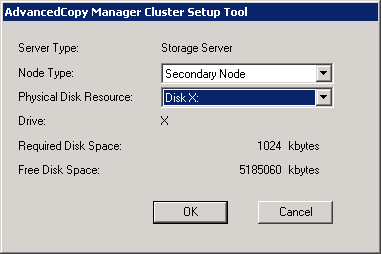
Each item is explained below. Make the required entries and then click OK.
Item | Explanation |
|---|---|
Server Type | Confirm that the server is a "Storage Server". |
Node Type | Select "Secondary Node". |
Physical Disk Resource | Select the "Disk resource of shared disk for shared data" that was prepared in "7.3 Confirmation of Customization Items". |
Drive | The drive letter corresponding to the physical disk resource is displayed. |
Required Disk Space | The minimum disk size required for the AdvancedCopy Manager cluster environment is displayed. |
Free Disk Space | The amount of free disk space of the specified drive is displayed. |
Set the cluster information for the secondary node A.
The values set for the primary node is displayed in the following page (The Node Type is displayed as a "Secondary Node"). After confirming each item, click OK.
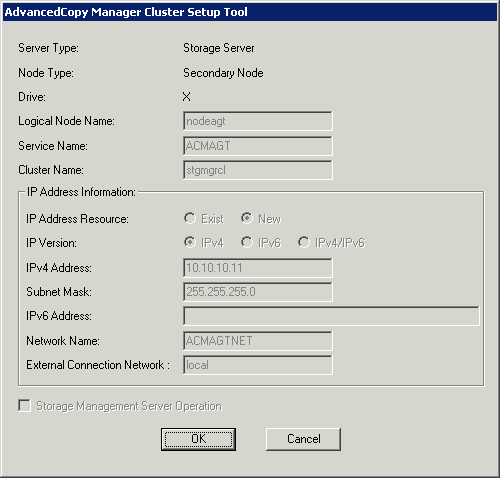
Set the port number and service.
The following page is displayed. The same value as those set for the primary node is displayed. If a port number and service has already been set, this page is not displayed.
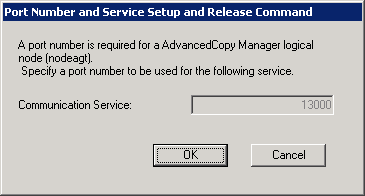
Click OK.
The port number and service settings have been completed.
Click OK.
The cluster setup of the secondary node has been completed.
When the cluster setup completion window is displayed, click OK.
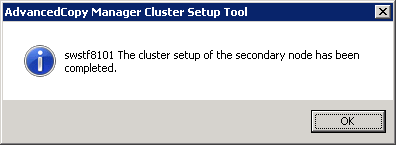
If the clustered system is the 1:1 Standby system, the Mutual Standby system, or the n:1 Standby system, go to step 27.
If the system is the Cascade system, go to step 18.
Restart the secondary node B.
Note
When the secondary node B consists of two or more nodes, perform from step 18 to step 26 on all of the secondary nodes B.
Move transactions to the secondary node B.
With Failover Cluster Manager, move transactions to the secondary node B.
Refer to your cluster software manuals for information on how to move them.
Instruct the start of the cluster setup.
On the secondary node B, execute the following cluster setup command:
The programDir is "Program Directory" specified at the AdvancedCopy Manager's agent installation.
When executing in the Management Server
programDir\ACM\bin\stgclset_mscs |
When executing in the Managed Server
programDir\bin\stgclset_mscs |
Select the node type and shared disk.
The initial window of the cluster setup command is displayed.
Each item is explained below. Make the required entries and then click OK.
Item | Explanation |
|---|---|
Server Type | Confirm that the server is a "Storage Server". |
Node Type | Select "Secondary Node". |
Physical Disk Resource | Select the "Disk resource of shared disk for shared data" that was prepared in "7.3 Confirmation of Customization Items". |
Drive | The drive letter corresponding to the physical disk resource is displayed. |
Required Disk Space | The minimum disk size required for the AdvancedCopy Manager cluster environment is displayed. |
Free Disk Space | The amount of free disk space of the specified drive is displayed. |
Confirm the addition of the secondary node B.
A confirmation dialog box for adding a secondary node to a Cascade system is displayed. Confirm that the service is for a Cascade system, and then click Yes.
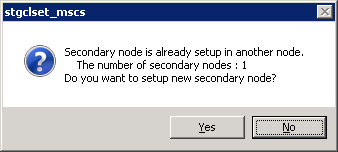
The number of secondary nodes already set up is displayed at the item "The number of secondary nodes".
Note
Note that the default is No (cancellation of processing).
Set the cluster information for the secondary node B.
The values set for the primary node is displayed in the following page (The Node Type is displayed as a "Secondary Node"). After confirming each item, click OK.
Set the port number and service.
The following page is displayed. The same value as those set for the primary node is displayed. If a port number and service has already been set, this page is not displayed.
Click OK.
The port number and service settings have been completed.
Click OK.
The cluster setup of the secondary node B has been completed.
When the cluster setup completion window is displayed, click OK.
Note
If more secondary nodes B remain (steps from step 18 to step 26 have not been performed on them), perform from step 18 in the remaining nodes. After operation from step 18 to step 26 is completed for all secondary nodes B, go to step 27.
If necessary, specify the resource dependency and the ownership required for execution.
Add a transaction disk resource to the dependency of the following resources by using the Failover Cluster Manager.
AdvancedCopy COM Service_logicalNodeName
Note
When a volume is added, or when it is deleted, it is necessary to again set up the above-mentioned dependency. Refer to "Notes on Cluster Operation" in the AdvancedCopy Manager Operation Guide (for Windows) for information about this.
If the number of clustered system nodes is greater than the number of cluster transaction nodes (such as in an n:1 standby system), using the Failover Cluster Manager, change the property information (ownership required for execution) of the AdvancedCopy Manager resources belonging to the cluster transaction for only the nodes operating in the cluster transaction. Refer to your cluster software manuals for information on how to change the ownership required for execution.
The property information must be changed for the following resources:
AdvancedCopy COM Service_logicalNodeName
AdvancedCopy IP Address_logicalNodeName (if "New" has been selected in the IP Address Resource with the cluster setup command of AdvancedCopy Manager.)
AdvancedCopy Network_logicalNodeName (if "New" has been selected in the IP Address Resource with the cluster setup command of AdvancedCopy Manager.)
Shared disk for shared data of AdvancedCopy Manager
Backup volume or replication destination volume
On the primary node, start the AdvancedCopy Manager service.
Use the Failover Cluster Manager to take the cluster transaction whose settings have been completed online and to start AdvancedCopy Manager service.
Back up the environment.
As a safeguard against accidental loss of data or file corruption, using the copy function (for example, Windows Explorer), back up the following folders in the shared disk for shared data of AdvancedCopy Manager:
<Drive of the shared disk for shared data of AdvancedCopy Manager>:\etc
<Drive of the shared disk for shared data of AdvancedCopy Manager>:\var
Check the operation node.
Using the Failover Cluster Manager, check that the cluster transaction operates on the node.
Create an environment for the Managed Server transaction.
Create an environment for the replication operation or backup/restore operation, which is executed in AdvancedCopy Manager, in a Managed Server transaction.
Refer to the AdvancedCopy Manager Operation Guide (for Windows) to create the environment for Managed Server transactions according to the operation type.
Note
When adding a Managed Server to a Managed Server transaction, execute the "stgxfwcmaddsrv" command.
programDir\ACM\bin\stgxfwcmaddsrv [-n serverName] -i logicalIpAddr -p portNumber
programDir : "Program Directory" specified at the AdvancedCopy Manager's agent installation
serverName : Server name
logicalIpAddr : Logical IP address
portNumber : Port number
Refer to "2.4.2 Cluster Transaction and Local Transaction" for information on the specified argument for command option.
Refer to "Command References" in the AdvancedCopy Manager Operation Guide for information on the command.
Restart all nodes.
If the secondary node in n:1 Standby system was already completely installed and customized (including the restart) earlier, restart only the primary node.