This section explains the procedure for uninstalling the manager of Systemwalker Software Configuration Manager from the admin server.
Uninstall the product from a Windows or a Linux machine.
[Windows]
Log in with administrator privileges.
Stop the agent.
Note
If operating System Software Configuration Manager under the following conditions, then proceed to step 3:
If linked to ServerView Resource Orchestrator
If operating on the same admin server as the Systemwalker Runbook Automation Management Server
%F4AN_INSTALL_PATH%\F4ANswnc\bin\swncctrl stop |
Select Start >> All Programs or All apps >> Fujitsu >> Uninstall (middleware).
The uninstaller will start.
Select Systemwalker Software Configuration Manager (admin server), and then click the Delete button.
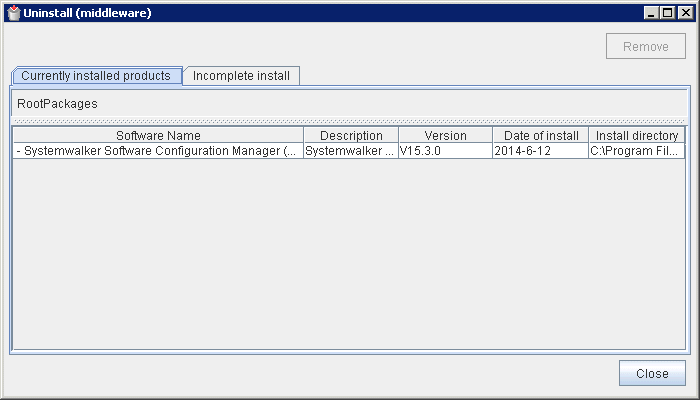
When uninstalling Systemwalker Software Configuration Manager because of installation failure or for some other reason, Systemwalker Software Configuration Manager may be displayed in the Incomplete install tab. If Systemwalker Software Configuration Manager is not displayed in the Currently installed products tab, click the Incomplete install tab to check that Systemwalker Software Configuration Manager is displayed there. The subsequent uninstallation procedure is the same even if Systemwalker Software Configuration Manager is displayed in the Incomplete install tab.
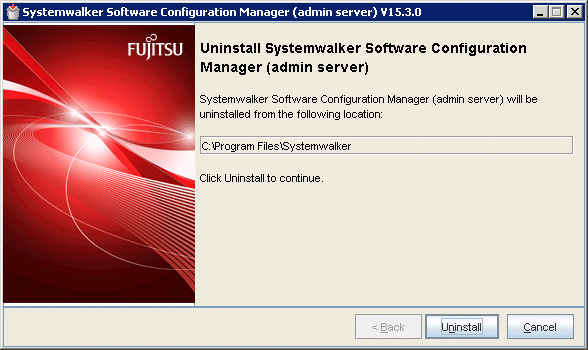
The Uninstall Systemwalker Software Configuration Manager (admin server) window will be displayed.
If the software can be removed, click the Uninstall button.
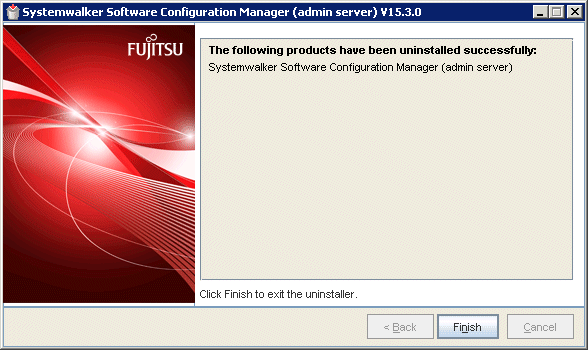
Upon successful completion, the following window will be displayed.
Click the Finish button.
The Confirm window (prompting for system restart confirmation) will be displayed.
Click the Yes button to restart the system.

[Linux]
Log in as a superuser on the system.
Stop the agent.
Note
If operating System Software Configuration Manager under the following conditions, then proceed to step 8:
If linked to ServerView Resource Orchestrator
If operating on the same admin server as the Systemwalker Runbook Automation Management Server
/opt/FJSVswnc/bin/swncctrl stop |
If the CORBA service is running, then stop the application server:
isstop -f |
If the service for using the Interstage Management Console is running, then stop it:
ismngconsolestop |
If the Interstage HTTP Server service is running, then stop it:
/opt/FJSVihs/bin/ihsstop -all |
If the Interstage Java EE DAS service is running, then stop it:
/opt/FJSVisjee/bin/ijdasstop |
If the Interstage Java EE Note Agent Service is running, then stop it:
/opt/FJSVisjee/bin/ijnastop |
Start the uninstaller.
# /opt/FJSVcir/cimanager.sh -c
The window for selecting the product to uninstall will be displayed.
Select Systemwalker Software Configuration Manager (admin server).
Entering "q" closes the uninstaller.
Loading Uninstaller...


Currently installed products
1. Systemwalker Software Configuration Manager (admin server)  V15.3.0

Type [number] to select the software you want to uninstall.
[number,q]
=>
Execute the uninstallation.
Enter "y" (Entering "b" returns to the previous window, and entering "q" closes the uninstaller).
Systemwalker Software Configuration Manager (admin server)
    Description: Systemwalker Software Configuration Manager (admin server)
    Version: V15.3.0
    Manufacturer: Fujitsu Limited
    Install directory: /opt
    Date of install: 2014-07-10


Starting the uninstall of the software. Are you sure you want to continue?
[y,b,q]
=>
Start the uninstallation.
When the uninstallation completes, the following window will be displayed:
Uninstalling...


The following products have been uninstalled successfully:
    Systemwalker Software Configuration Manager (admin server)


Exiting Uninstaller.