This section explains the tasks required before setup cancellation for the admin server.
[Windows]
Delete the discovery schedule that has been registered with the Task Scheduler.
Log in to Windows using an account that belongs to the Administrators group.
Select Start >> Administrative Tools >> Task Scheduler.
The Task Scheduler window will be displayed.
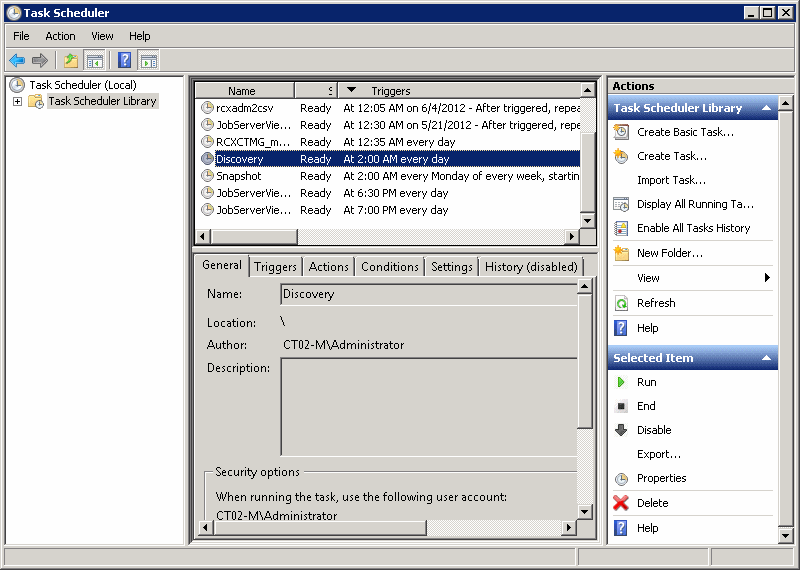
Select the task to be deleted.
Delete the task by selecting Action >> Delete.
[Linux]
Delete the discovery schedule that has been registered with cron.
Perform the following procedure as the root user:
Execute the following command to edit the schedule definitions:
>crontab -e
Executing the "crontab -e" command starts the vi editor. Refer to the vi editor manuals for information on the vi editor.
Example: Deleting the following discovery schedule:
0 2 * * * /opt/FJSVcfmgm/bin/swcfmg_patch_updateinfo -repository
[Windows]
Delete the configuration baseline creation schedule that has been registered with the Task Scheduler.
Log in to Windows using an account that belongs to the Administrators group.
Select Start >> Administrative Tools >> Task Scheduler.
The Task Scheduler window will be displayed.
Select the task to be deleted.
Delete the task by selecting Action >> Delete.
[Linux]
Delete the configuration baseline creation schedule that has been registered with cron.
Perform the following procedure as the root user:
Execute the following command to edit the schedule definitions:
>crontab -e
Executing the "crontab -e" command starts the vi editor. Refer to the vi editor manuals for information on the vi editor.
Example: Deleting the following configuration baseline creation schedule:
0 6 * * 1 /opt/FJSVcmdbm/bin/snapcreate.sh -q
Delete the automated operation process group (cfmgApplication) that has been used in Systemwalker Software Configuration Manager.
To delete an automated operation process group for patch distribution/application processing, parameter configuration processing, or script execution processing, there must be no process instances in the automated operation process group, and the state must be Offline. Taking this into consideration, perform the following procedure:
Log in to the Web console for Systemwalker Runbook Automation.
http://<Name of the admin server>:<Port number>/console/Default/ |
If the port number has been changed from the initial value "80", specify the new port number.
User ID | swrbaadmin |
Password | systemwalker#1 |
If these values have been changed from the initial values, log in using the new values.
cfmgApplication |
Note
Be careful not to select automated operation process groups other than "cfmgApplication". Otherwise, operations of other products may be affected.
Click the Process Instances submenu on the Process Management tab to display the Process Instances tab in the work area.
Select All Processes in the Process Filters pull-down menu, and delete all of the process instances that are displayed.
Select the process instances to be deleted and then click the Delete button. Multiple process instances can be selected using the Shift key.
Click the Process Group Settings submenu on the System Administration tab to display the Process Group Settings tab in the work area.
Select the "cfmgApplication" automated operation process group from the process group list, and then select Offline in the Details tab of the details panel.
The status of the automated operation process group will change to Offline.
Select the "cfmgApplication" automated operation process group from the process group list, and then select Uninstall in the Details tab of the details panel.
Note
Be careful not to uninstall automated operation process groups other than "cfmgApplication". Otherwise, operations of other products may be affected.
Click the OK button in the deletion confirmation message window.
If operating the admin server with ServerView Resource Orchestrator linked, run the following command to stop ServerView Resource Orchestrator.
[Windows]
<ServerView Resource Orchestrator installation directory>\SVROR\Manager\bin\rcxmgrctl stop |
[Linux]
/opt/FJSVrcvmr/bin/rcxmgrctl stop |
Note
Do not use this procedure if operating Systemwalker Software Configuration Manager with ServerView Resource Orchestrator linked.
Run the following command to stop Systemwalker Runbook Automation.
[Windows]
%SWRBA_HOME%\bin\swrba_stop |
[Linux]
/opt/FJSVswrbam/bin/swrba_stop |